Your channels. Your way.
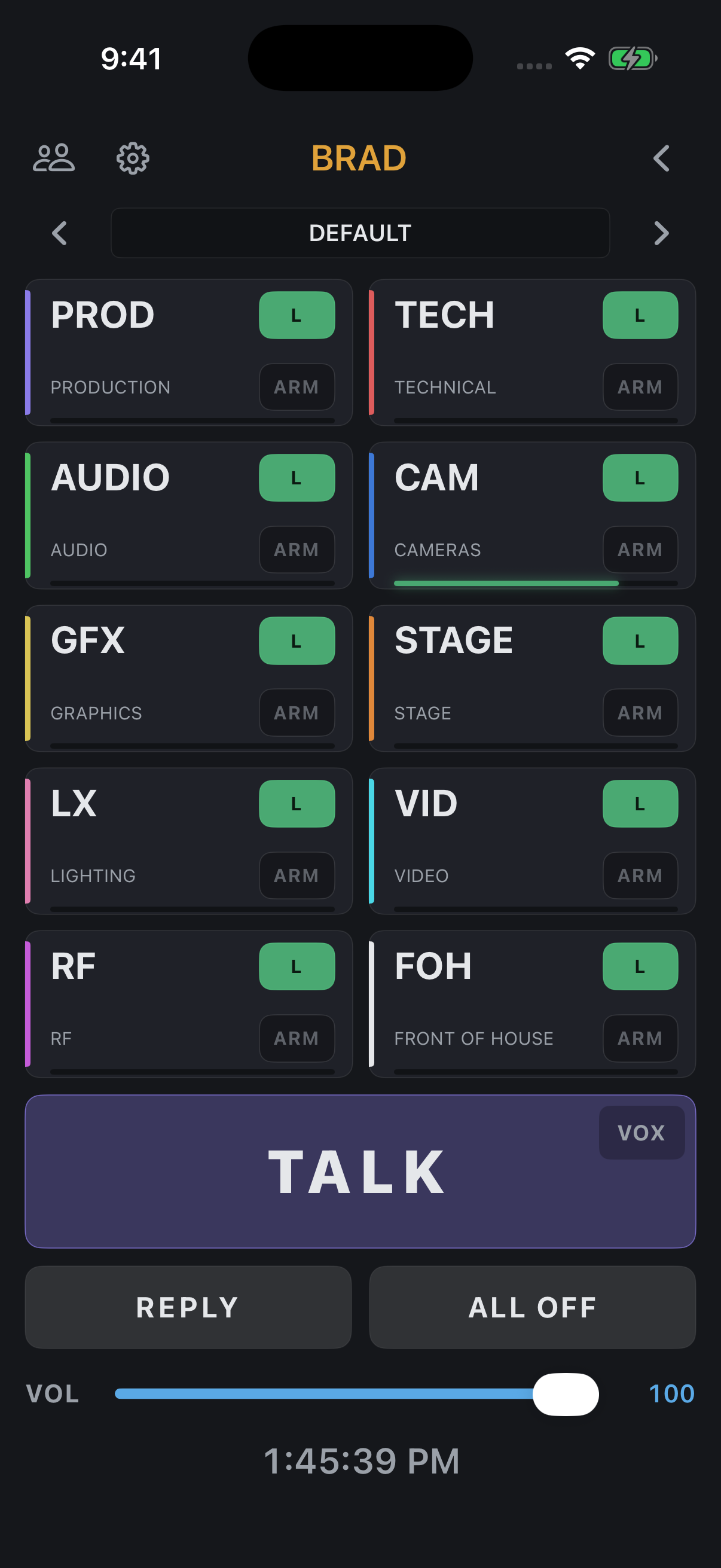
Ten positions per group keep your working channels within reach. Switch layouts without changing channel permissions.
- Independent listen and talk controls
- Momentary TALK, latched talk and VOX
- Per-channel levels and ALL OFF
Production intercom for live events, remote crews and church production teams. Connect phones, tablets and computers over the internet, with your own Mac server or a hosted Cloud room.
macOS · Windows · iOS · Android
channels in the client
users on your own server
users per room / subscription
Ten positions per group keep your working channels within reach. Switch layouts without changing channel permissions.
Reach one teammate without interrupting the whole group.
Give each role the channels, groups and controls it needs.
Listen to program audio alongside the crew, with speech taking priority when it needs to.
Shape your microphone and monitoring for the headset and environment you work in.
Audio is encrypted between each client and its server, with both Server App and Cloud.
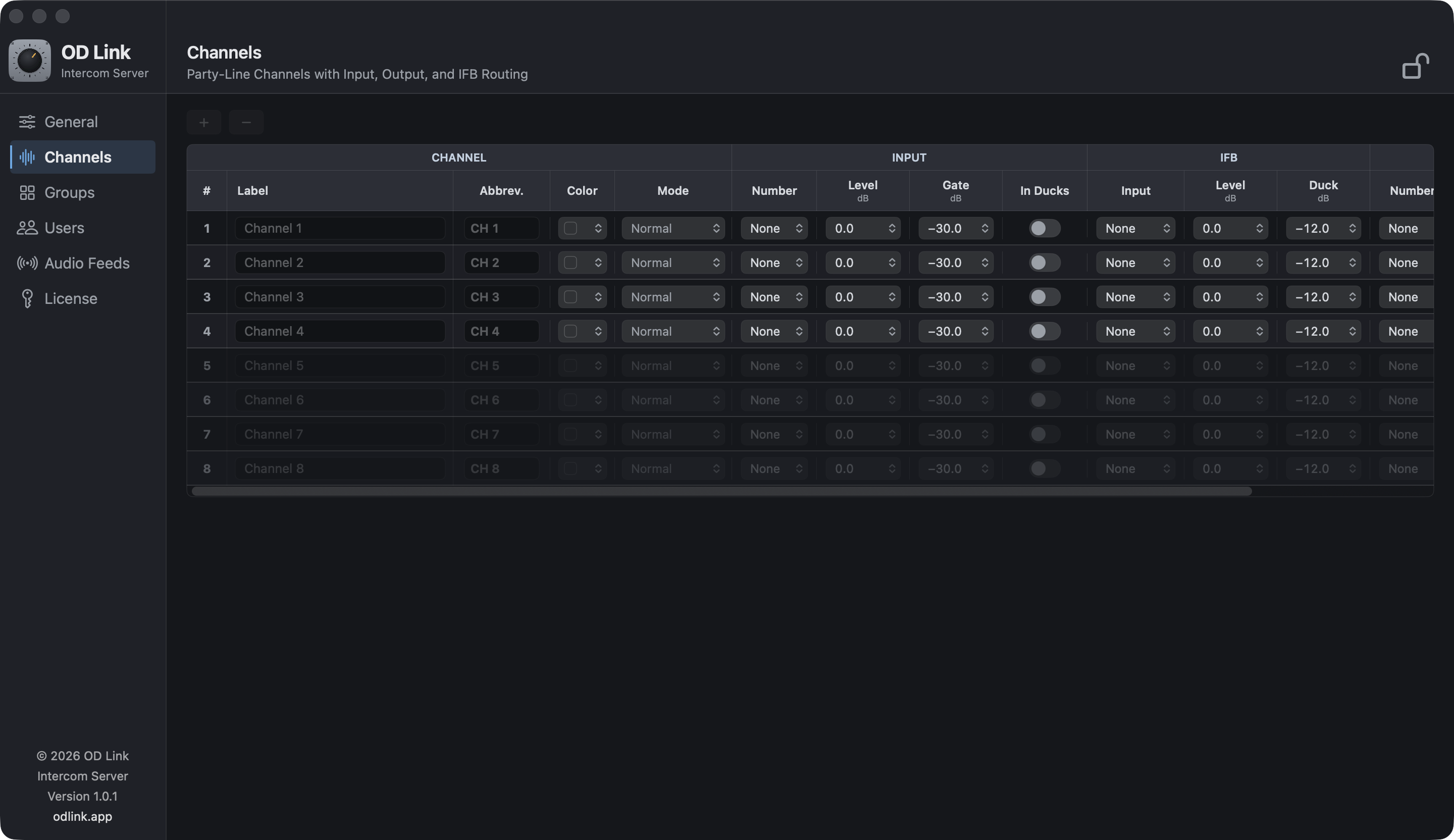
Up to 128 channels, 128 groups and 128 Audio Feeds. Core Audio input and output routing, IFB and AES-256-GCM audio encryption. All included, with no separate feature licenses.
Integrate existing intercom systems, mixing consoles and other production audio equipment through a compatible Core Audio interface or virtual audio device on your Mac. Bring their audio into OD Link channels and Audio Feeds, and send your crew's channel audio back to those systems.
4 users included. Additional users are sold separately as one-time purchases, up to 500 users total. Cloud hosting is a separate subscription.
Explore Core Audio I/O4 users included. Additional users sold separately. Up to 500 total.
Host on your Mac and connect your crew over the internet, or a local network.
Up to 100 users per room / subscription
Give your crew a room name and sign-in details. They connect over the internet while we host the server.
| Capability | Paid Server App | Cloud room |
|---|---|---|
| Users | 4 included; additional users sold separately, up to 500 total | Subscription capacity from 5 to 100 users |
| Channels / Groups / Audio Feeds | Up to 128 of each | Up to 100 channels, 100 groups and 16 Audio Feeds |
| Client layout | 10 positions per group | 10 positions per group |
| Audio encryption | AES-256-GCM, client to server | AES-256-GCM, client to server |
| Hosting | Your Mac, macOS 14 or later | Hosted for you; no local server Mac |
| Connection | Direct over the internet; local network also supported | Over the internet with room name and participant credentials |
| Audio sources and IFB | Core Audio device inputs and output routing included | Client audio sources |
| Payment | $399 one-time; additional users sold separately | Monthly, quarterly or yearly subscription |
Client apps are free on macOS, Windows, iOS and Android. The Server App license includes 4 users; additional users are purchased separately. Cloud subscriptions are priced by user capacity.
Evaluate the server with a small team before choosing a license. Demo is for testing, not a live production.
Periodic audio interruptions
Demo lets you test your setup, but is not intended for uninterrupted use in a live production.
The client still has 10 channel positions. A Demo server routes only the first four channels, groups and feeds. A paid server license removes these Demo limits and interruptions; user capacity follows the license.
Download DemoChoose the server app or a Cloud room. Create your users, channels, and groups.
Give each participant their connection details, username, and password.
Listen to your channels, arm your talk destinations, and press TALK.
The client displays 10 channel positions per group. The paid Server App supports up to 128 channels and 128 groups; Cloud supports up to 100 of each per room.
The server app supports up to 500 users. Cloud supports up to 100 users in one room / subscription. Your available capacity depends on your license or subscription.
No. The owner manages the Cloud subscription. The administrator creates the usernames and passwords that participants use to connect to the room.
Yes. Use TALK in the Users tab for a direct conversation and REPLY to respond.
Get to know the client, plan your server setup, and find the answers before your first connection.